
The debug panel
See every name a template can use on a page, with its value and where it comes from, and the site's problems, while you write.
While statac serve runs, every page in the browser carries
the debug panel. It is only in what serve sends: a page Statac builds
for publishing never has it.
When the debug panel is closed, it is a small tab in the bottom left corner
of the page. The tab shows how many errors, warnings and notes the site
has, marked with squares, triangles and rings, and the time of the last
build. While a build runs, the tab says Building. On a draft it says
Draft, and on a scheduled post Scheduled for and the post’s date.
Hover over the tab, or move to it with Tab, for a summary: when serve built the site, what serve printed for that build, and this page’s problems.
Click the tab, or press Alt+Shift+S, to open the debug panel. On a Mac, that is Option+Shift+S. The debug panel stays open while pages reload and while you move from page to page, until you close it.
What a template can use here
The Names tab has a group for page and one for site. If the site has
a data/ folder, there is a third for site.data.
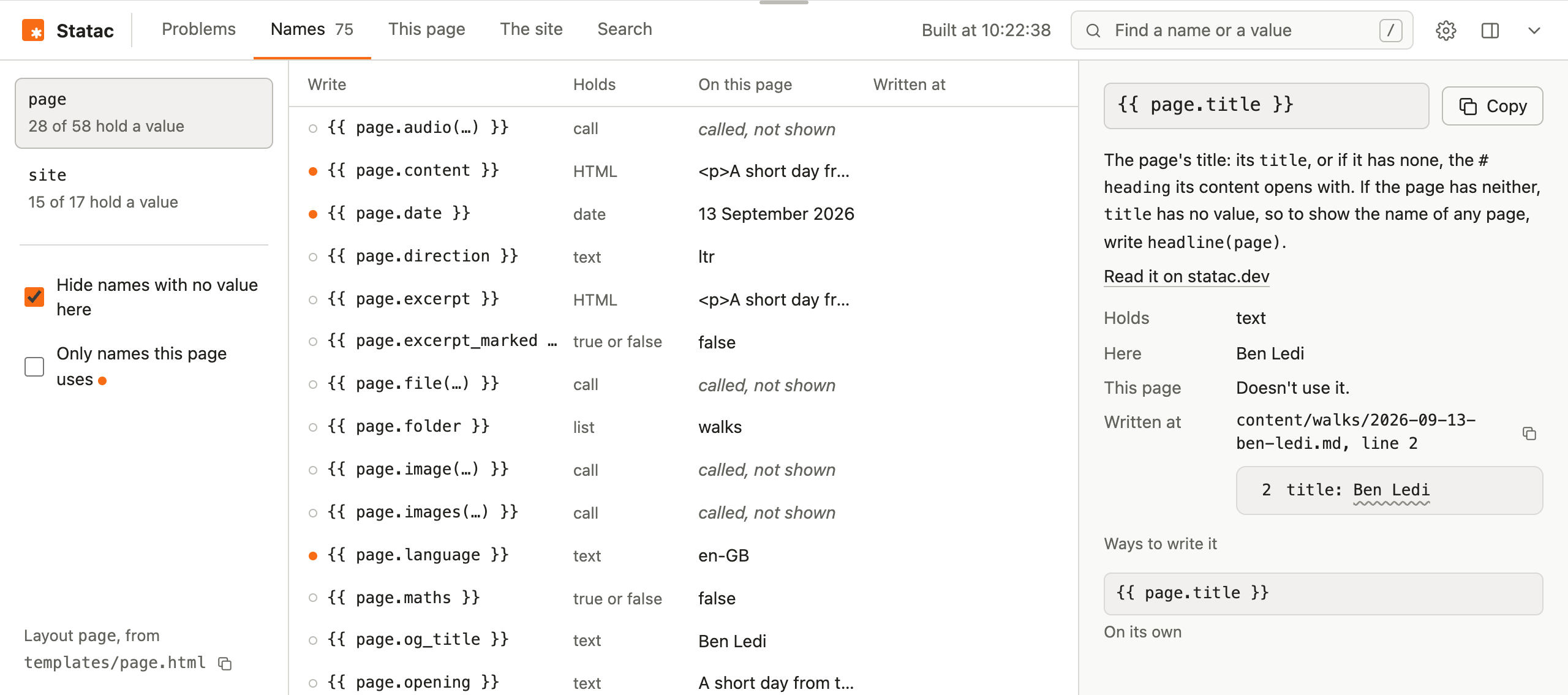
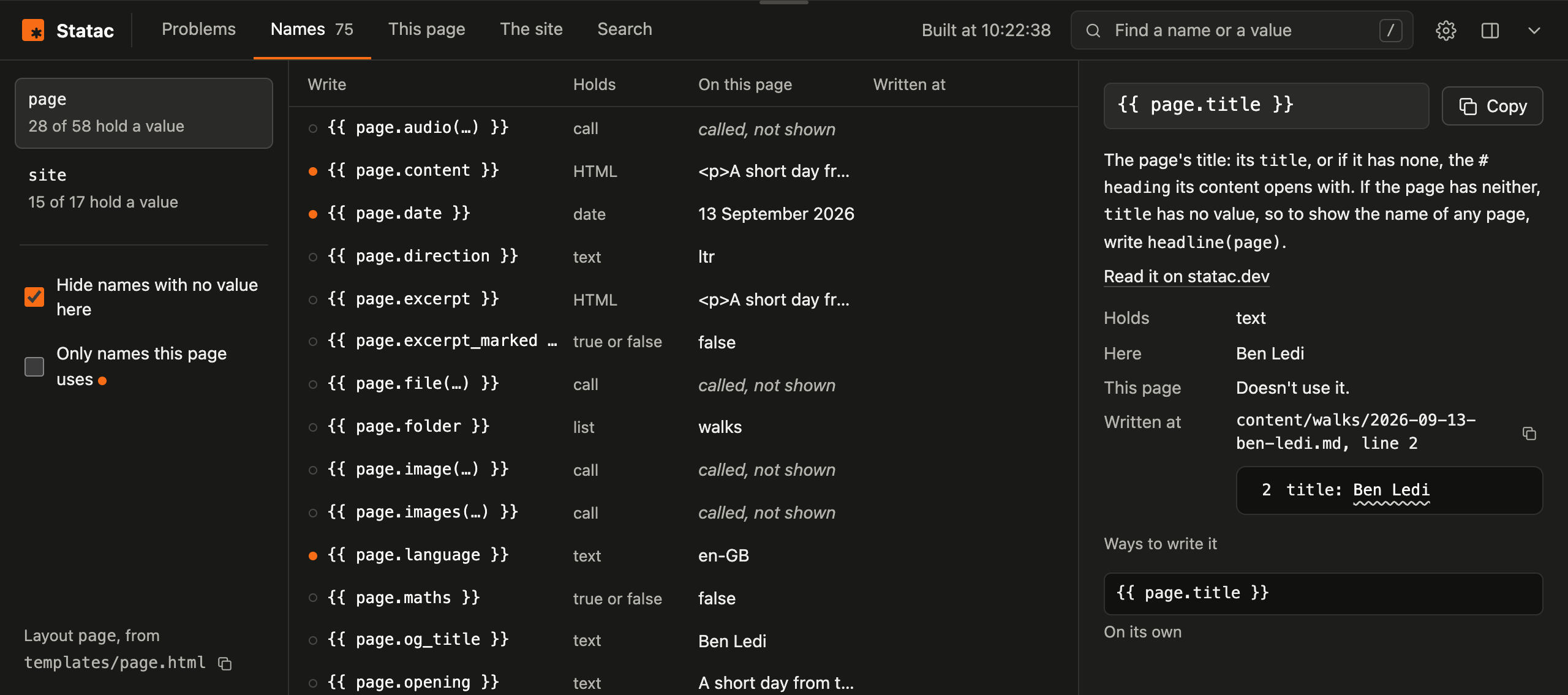
Each name is a row:
| Column | What it says |
|---|---|
| Write | The name as you would write it in a template, such as {{ page.title }}. A call has its brackets, as in {{ page.audio(…) }}. |
| Holds | The kind of value: text, a number, a date, a page, a list. |
| On this page | What the name would put on this page, such as the page’s title for {{ page.title }}, shortened if it is long. For a list of pages, how many pages it holds. no value means the name has no value on this page. For a call, the column says called, not shown. |
| Written at | The file and line the value comes from. |
A dot before a name means Statac used the name while building this
page.
The debug panel hides names with no value on this page until you untick
Hide names with no value here. Tick Only names this page uses to
hide the names this page didn’t use. To find a name or a value, type in
the search box, or press / to go to it.
Choose a name to see more: a Copy button that copies it ready to
paste into a template, the line its value is written on, and the names
you can write after it, such as page.date.year. For some names, the
debug panel also shows other ways to write them.
If you can’t write a name after a dot, the debug panel writes it in
brackets instead, as in site.data.words["en-GB"].
The tabs
When it is open, the debug panel is a drawer across the bottom of the page, with five tabs:
| Tab | What it shows |
|---|---|
| Problems | This page’s problems or the whole site’s, each written as statac check writes it. You can show or hide errors, warnings and notes, and show the problems quietened in statac.yaml. Next to the chosen problem is what statac explain says about its kind. |
| Names | Every name a template can use on this page, with its value on this page. |
| This page | The page’s file and URL; its layout, what the layout extends, and what chose the layout; its language and feeds; each list it is in, with its place in the list and the pages either side; and every file that rebuilds it when the file changes. |
| The site | The last rebuild: what changed, and how long each part of the build took. Then the rebuilds since serve started, the site’s problems by kind, its drafts and scheduled posts, and what the last rebuild wrote into your files. |
| Search | The pages a reader would find for the words you type, best first, ranked the way the site’s search ranks them. While serve shows drafts and scheduled posts, they are among the results. Next to the chosen result is why it ranks where it does: how many of the words it holds and its score; for each word, the forms found, where they are on the page, what each place adds to the score, and how many parts of the site hold the word; then the length of the part’s text and of the page’s title, each against the site’s average. |
A rebuild is one build: the first when serve starts, then one each time you save.
The Search tab works on any site, whether or not it has a search box.
It searches the pages serve is showing, and leaves out a page with
search: false, as the site’s search does.
statac search searches the same way in the
terminal.
Drag the drawer’s edge to make it taller or shorter. The button next to the settings moves the drawer to the right-hand side of the page.
When a build stops
If an error stops the build, the tab turns red and says
Build stopped, and a card opens above it with the error: its file and
line, the lines round it with the mistake underlined, and the fix. If
more than one error stopped the build, you can step through them on the
card. What it means, and how to fix it opens the debug panel at the
error, next to what statac explain says about
that kind of problem.
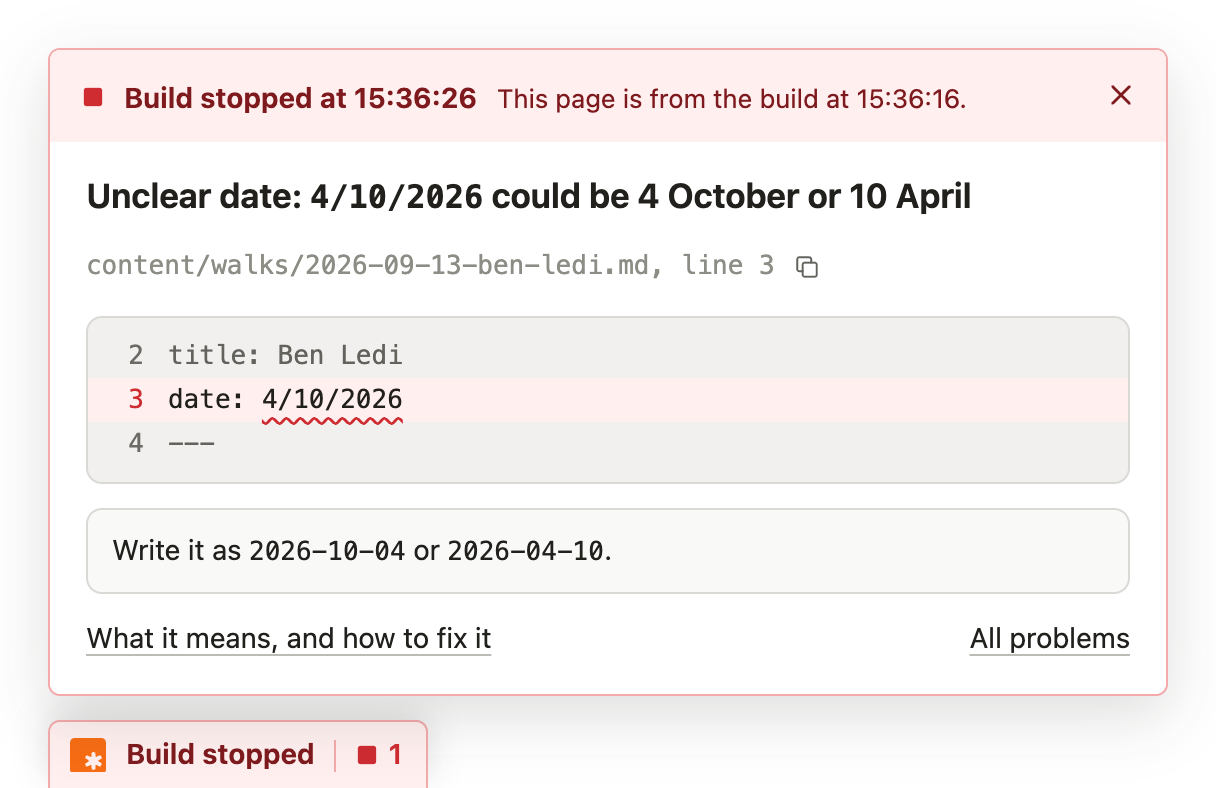
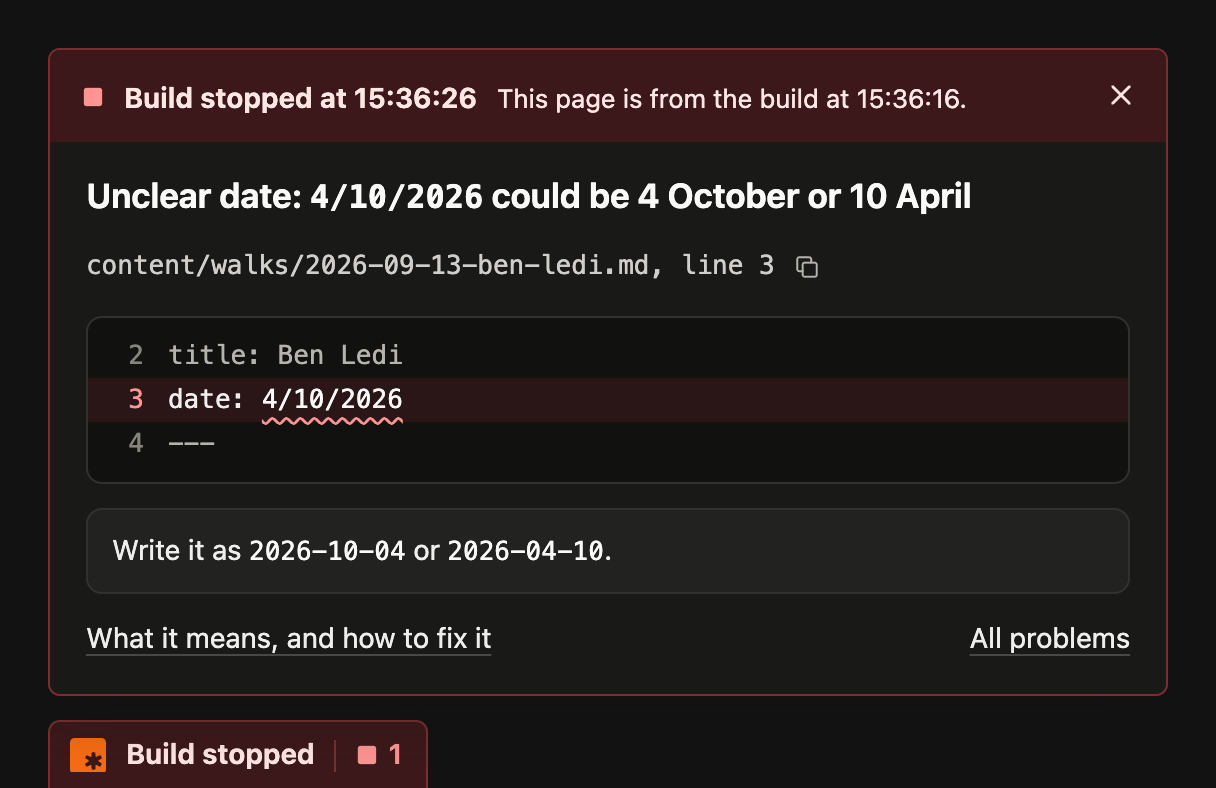
If you close the card, it stays closed until another build stops. The
tab stays red until a build succeeds. To have only the tab turn red,
choose Only turn the tab red in the settings.
Open files in your editor
Next to every file and line the debug panel names is a button that
copies them as file:line, such as content/post-1.md:3. Most editors
accept that in the box where you go to a file.
To open files straight in your editor, choose it under Open files in
in the settings: VS Code, VS Code Insiders, Cursor,
Zed or Sublime Text. Then click a file the debug panel names, and it
opens in that editor at that line. The error card and each problem also
have an Open in editor link.
Note
Sublime Text can’t open these links on its own. It can once you install the free SublimeUrl app, which runs on macOS only.
Settings
The gear at the top of the drawer opens the debug panel’s settings:
| Setting | Choices |
|---|---|
| Where the debug panel sits | Corner, a tab in a corner of the page, by default. Bar, a thin bar across the bottom of the page in place of the tab. Side, with the drawer down the right-hand side of the page. |
| Which corner | Bottom left by default, bottom right, top left or top right. |
| Colours | As the system by default, or always Light or always Dark. |
| Open files in | None by default, or an editor. |
| When a build stops | Open the error card by default, or only turn the tab red. |
| Shortcut | Alt+Shift+S by default. Click Change and press the new keys, which must include Alt, Ctrl or Meta. |
This browser keeps the settings, along with whether the debug panel is
open, which tab it is on and its size. Hide until I reload, at the
bottom of the settings, hides the debug panel until the page next
loads.
From the keyboard
| Key | What it does |
|---|---|
| Alt+Shift+S | Opens or closes the debug panel, except while you are typing on the page. |
| Left and Right | Move between the drawer’s tabs. |
| Up and Down | Move between names in the Names tab, and between pages in the Search tab. |
/ | Goes to the search box: the Search tab’s if that tab is open, otherwise the Names tab’s. |
| Escape | Clears the search, or closes the settings, the drawer or the error card. Closing the drawer puts you back on the tab. |
Where next?
- Serving a site while you write: what serve does each time you save
- Templates: writing the templates whose names the Names tab lists
- Errors, warnings and notes: reading a problem
Something unclear or wrong? Open an issue.